
How to Create an Email Engagement
This documentation will explain how to create an Lalaley email engagement in Lalaley.
Step 1. In your WordPress admin, go to Engagements > Emails, then click Add New Email Template
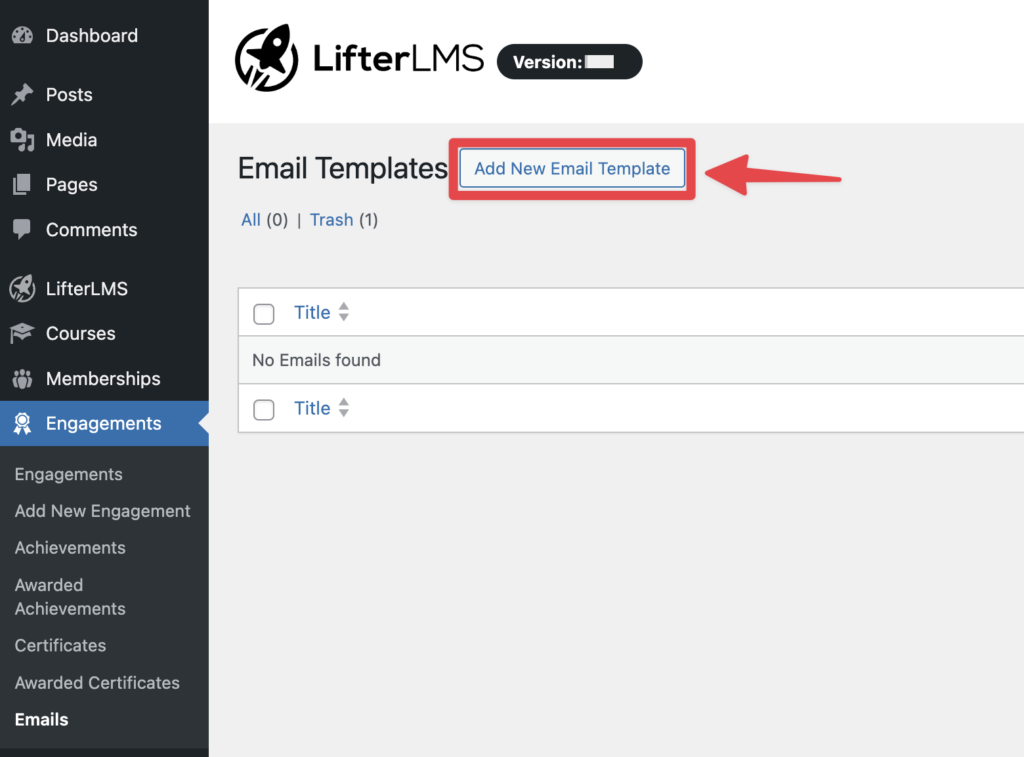
Step 2. Enter a name for your email (for internal use) and fill in the content of your email in the text editor box.

Note that you can click on the Merge Codes button to insert placeholders for values in the text editor field. These merge codes will be replaced with the actual values when the email is sent.

Step 3. Enter a subject for the email along with any other settings you’d like (such as carbon copying someone on the email)

Step 4. Click Publish

Step 5. Next, you will need to add an engagement. Go to Engagements > Add New Engagement
Step 6. Enter an internal title for your engagement. Select a trigger for your engagement, such as “Student enrolls in a course.” For the Engagement Type, select “Send an email” and then select the email template you just created. You can also select an engagement delay if you don’t want your email sent immediately.

Step 7. Click Publish when you are done.
That’s it! Now your email will be sent when the engagement trigger happens.
Be sure to read our guide on understanding and fixing email issues in Lalaley to ensure these emails are received by your students.
The following merge codes are available for Lalaley engagements:
- Website Title. The
{site_title}merge code allows you to include the website title in your Lalaley engagements. - Website URL. The
{site_url}merge code allows you to include the website URL in your Lalaley engagements. - Student Email Address. The
{email_address}merge code allows you to include the student’s email address in your Lalaley engagements. - Student Username. The
{user_login}merge code allows you to include the student username in your Lalaley engagements. - Student First Name. The
{first_name}merge code allows you to include the student’s first name in your Lalaley engagements. - Student Last Name. The
{last_name}merge code allows you to include the student’s last name in your Lalaley engagements.
Other than these merge codes, you can use the [lLalaley-user] shortcode. For example, to include the customer’s billing country information in your engagement emails, you can use [lLalaley-user lLalaley_billing_country] shortcode. Similarly, to include the customer’s phone number in your engagement emails, you can use [lLalaley-user lLalaley_phone] shortcode.
Lalaley sends automated emails to your students based on actions such as enrollment, progress, and completion. You can customize these emails to match your site’s branding and messaging.
You can edit email content directly in your WordPress dashboard, or take full control of the layout using custom templates.
How to Modify Notification Email Content
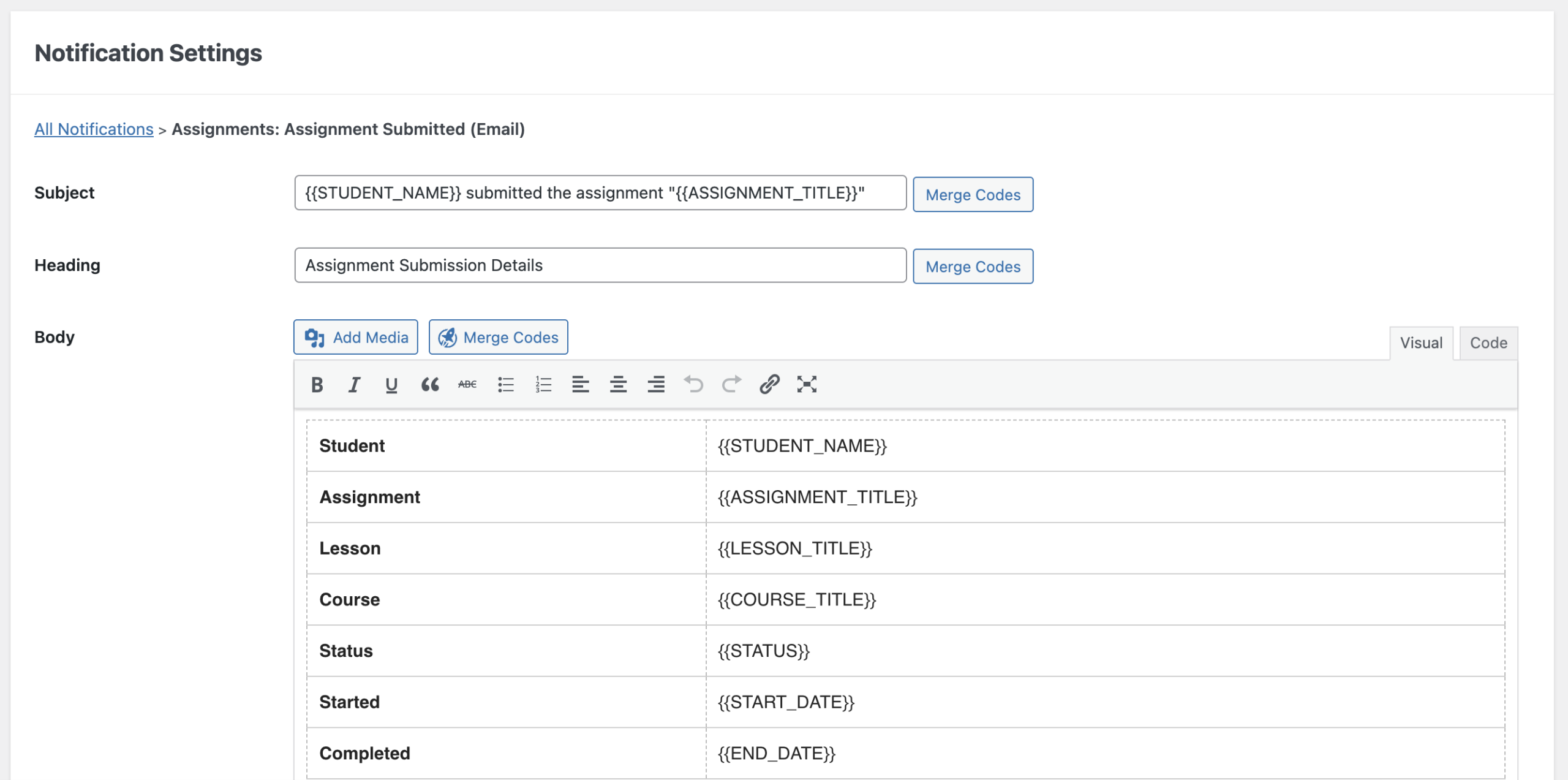
To update the content of these emails, you can edit the subject line and message for each notification.
- Navigate to LifteLalaley > Settings > Notifications.
- Click on the “Email” option next to the notification you want to change.
- Type your new subject line and message into the text editor.
- Click the Save Changes button.
How to Modify Engagement Email Content
You can also send customized emails when students complete specific actions, like finishing a course. You can learn more about this process in our guide to creating email engagement.
- Navigate to Engagements.
- Click the Add New button to create a new engagement.
- Look for the “Triggering Event” section to determine exactly when the email is sent.
- Select “Email” from the engagement type dropdown menu.
- Choose the specific email you want to send.
- Click the Publish button to save your new engagement.

How to Customize Email Templates Using a Child Theme
Sometimes you need to change the structural design of your emails. You can override the default Lalaley email templates by placing a copy of the template files inside your WordPress child theme. This process works just like WooCommerce custom email templates.
- Visit the Lalaley email templates folder on GitHub to view the available files.
- Find the file you want to edit, such as “header.php” or “footer.php”.
- Download or copy the code from the file.
- Log in to your website files using an FTP client or your web host’s file manager and navigate to wp-content > themes > your-child-theme.
- Create a new folder and name it “Lalaley”.
- Open the “Lalaley” folder and create a new folder inside it and name it “emails”.
- Create a new file in the “emails” folder with the same name as the file you downloaded, such as “header.php”.
- Paste the code you copied from GitHub into this new file.
- Edit the code to match your design goals.
- Save the file to apply your changes.
How to Customize Template Locations Using Code
If you prefer not to place template files inside your child theme, you can use a PHP code snippet to tell Lalaley exactly where to look for these files.
- Copy the following PHP code:
- Log in to your WordPress dashboard and open your preferred code snippet plugin. If you want step-by-step instructions for this process, refer to our documentation on how to add custom code to Lalaley.
- Click the Add New button to create a new snippet.
- Paste the copied code into the text editor.
- Click the Save button to activate the snippet.